Benjamin's Technology Notebook
The project logs, technical runbooks, and problem-solving notes behind Ben’s engineering builds.
Project maintained by bentay85 Hosted on GitHub Pages — Theme by mattgraham
Coloured 3D Print from an Image
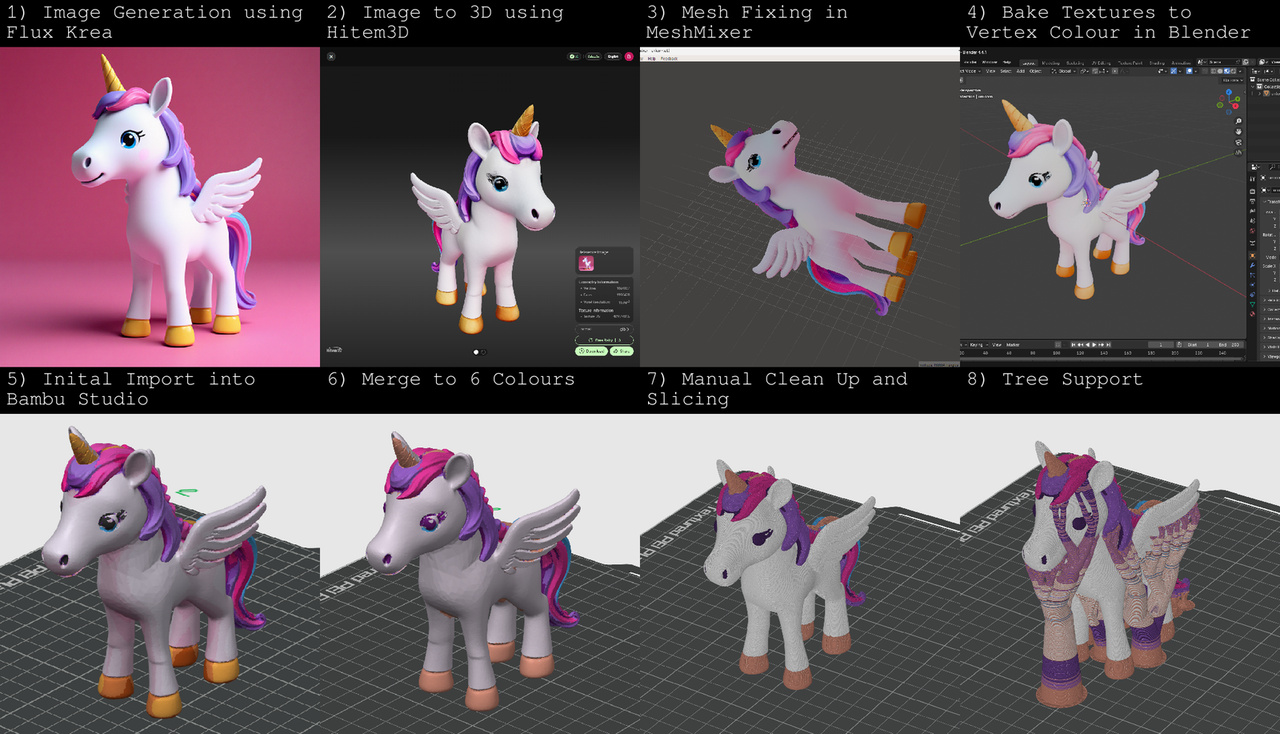
The workflow uses AI to generate a 3D model with textures. The textures are then baked into Vertex Colors so the model imports into Bambu Studio seamlessly. Some manual painting is still necessary to make the model look perfect for printing, but this method saves a huge amount of time compared to painting the entire model manually.
-
Start with an image of the object you want to 3D print. This can be a photo or an AI-generated image.
-
Generate the 3D model. I use Hitem3D to convert the image into a 3D model. It’s a paid service but provides 100 free credits, enough for two high resolution textured generations. I generated at 1536 resolution with textures enabled and downloaded the model in OBJ format. The geometry is very high resolution, so it should be reduced to save computation time. Link to the generated model: link.
- Optimize the geometry in Meshmixer.
- Import the model, press
Ctrl+Ato select all, clickEdit→Reduce. I reduced the model to 2000 triangles while retaining good detail. - Fix the geometry to make it manifold: clear the selection, click
Edit→Close Cracks. - Press
Ctrl+Aagain, thenEdit→Remesh(default settings). - Export the cleaned model as OBJ.
- Import the model, press
- Bake textures into Vertex Colors in Blender.
- Delete the default cube and import your model. It may appear white, but enable Viewport Shading (top-right corner above the axes) to see textures.
- Select the model, go to Object Data Properties (green inverted triangle), add a new Color Attribute with Domain: Vertex and Data Type: Color.
- Switch the render engine to Cycles under the Render tab (Camera icon). Under Bake, set Bake Type to Diffuse, Influence to Color only, and output to the Active Color Attribute. Click Bake.
- Once complete, export as OBJ, making sure to check “Colors” under Geometry.
- Import into Bambu Studio.
- Remove all extra colors and leave only one before import.
- Drag the OBJ into Bambu Studio; a dialog will map vertex colors to Bambu Studio colors. Set 16 colors and click OK. Confirm scale change to millimeters.
- Click “Lay the Model on Face” and select the area below its feet. Adjust the model scale as needed.
- Simplify colors for printing.
- Remove the first color present before import.
- Merge similar colors using the three-dot menu for each filament. I ended up with six colors, requiring two AMS units to print. You can reduce further to four colors if using only one AMS.
-
Fine-tune colors. Use the Color Painting Tool to adjust any areas manually. Slice once without supports to check how the model will look.
- Finalize for printing. Turn on supports and slice again. Your model is ready to print.
Hopefully, this workflow helps those looking to convert images into colored 3D prints. For reference, here’s a link to the 3MF file after merging colors but before any manual painting adjustments: link