Benjamin's Technology Notebook
The project logs, technical runbooks, and problem-solving notes behind Ben’s engineering builds.
Project maintained by bentay85 Hosted on GitHub Pages — Theme by mattgraham
Tiered Storage Pool for Old 2.5 Inch Drives
Introduction
I had an old 2.5” SSD gathering dust, along with two 500GB 2.5” HDDs that I’d salvaged from portable hard disk enclosures. My PSU still had three unused SATA power lines, and my motherboard had six free SATA ports—plenty of room to experiment.
What I wanted was simple: combine these drives into a single, massive volume in Windows. The idea was to use the SSD as a high-speed cache so writes would be fast, while the HDDs would provide the bulk of the storage for less frequently accessed data. In other words, hot data on the SSD, cold data on the HDDs.
This setup is essentially a tiered storage pool, where different types of drives work together as one. The SSD delivers the speed, the HDDs provide the capacity, and Windows intelligently decides where to place the data. The result is the best of both worlds—quick responsiveness without sacrificing storage space.
The catch? Although Windows 11 comes with the Storage Spaces software, tiered storage pools are only available through configuration in PowerShell. Once enabled, though, it feels like having a DIY hybrid drive: fast, efficient, and surprisingly elegant for repurposed hardware.
Enclosure
While looking for a solution to house my 2.5-inch drives, I came across a model on Printables.com. The original design was a 4-bay enclosure, but I only needed space for three drives. Using Tinkercad, I modified the model to create a custom 3-bay version. Once the edits were complete, I 3D printed the enclosure and used double sided foam tape to secure it in my PC.
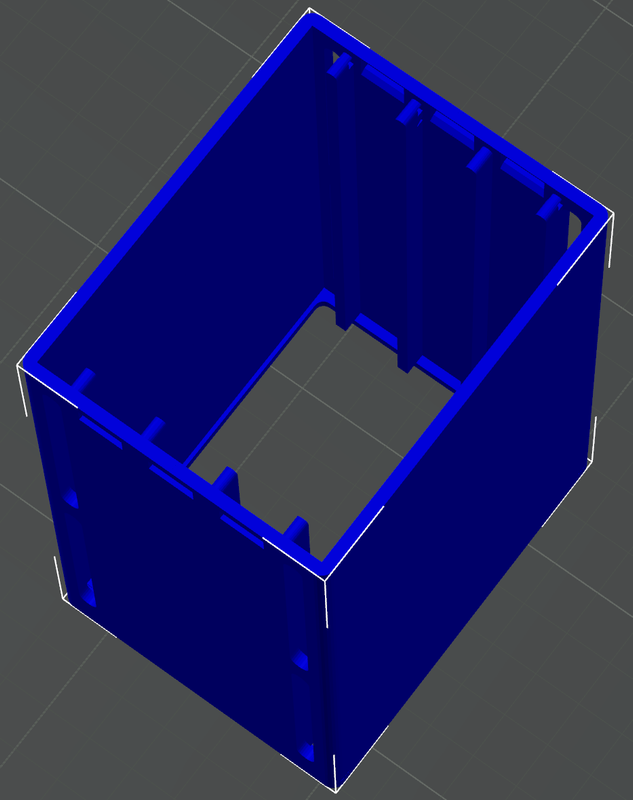
I screwed the 3D printed slids onto the SSD and HDDs and I’m happy to report that all three drives fit into the enclosure perfectly. It was a simple yet satisfying project that combined 3D modeling and practical functionality, resulting in a neat, custom-fit storage solution.
Setting Up Storage Spaces in Windows
After preparing the disks by using the Disk Management tool to wipe all data and delete any existing partitions, they were ready to be added to a Storage Pool. I set up the storage pool using the following PowerShell commands:
$disks = Get-PhysicalDisk |? {$_.CanPool -eq $true}
New-StoragePool -FriendlyName "HybridPool" -StorageSubsystemFriendlyName "Windows Storage on BenPC" -PhysicalDisks $disks
$ssd_tier = New-StorageTier -StoragePoolFriendlyName "HybridPool" -FriendlyName "SSD_Tier" -MediaType SSD -ResiliencySettingName Simple
$hdd_tier = New-StorageTier -StoragePoolFriendlyName "HybridPool" -FriendlyName "HDD_Tier" -MediaType HDD -ResiliencySettingName Simple
New-VirtualDisk -StoragePoolFriendlyName "HybridPool" -FriendlyName "HybridDisk" -StorageTiers @($ssd_tier,$hdd_tier) -StorageTierSizes @(231GB,930GB)
There were some PowerShell commands that were very helpful in the debugging process, while I was learning to use Storage Spaces.
#Show Storage Subsystem
Get-StorageSubSystem

#Show disks
Get-PhysicalDisk

#Show storage pools
Get-StoragePool

#Show storage tiers
Get-StorageTier

#Show virtual disk
Get-VirtualDisk

#Show disks within storage pool
$pool=Get-StoragePool -FriendlyName "Storage pool"
Get-PhysicalDisk -StoragePool $pool

#Show size supported by storage tier
Get-StorageTierSupportedSize -FriendlyName "SSD_Tier"
Get-StorageTierSupportedSize -FriendlyName "HDD_Tier"

#Remove VirtualDisk
Get-VirtualDisk -FriendlyName "HybridDisk" | Remove-VirtualDisk

#Remove Storage Pool
Get-StoragePool -FriendlyName "HybridPool" | Remove-StoragePool
Benchmarks
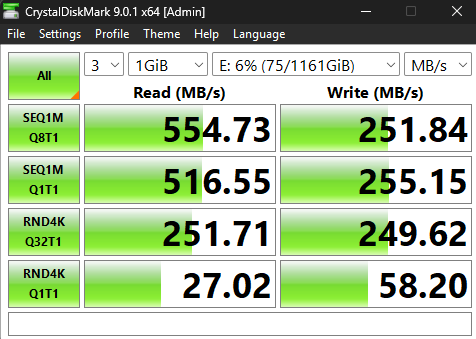
While the CrystalDiskMark scores aren’t exactly record-breaking, I’m genuinely impressed with the performance of this old hardware—hardware that might have otherwise ended up in the e-waste pile. It’s rewarding to see these drives still delivering solid results and getting a second life.