Benjamin's Technology Notebook
The project logs, technical runbooks, and problem-solving notes behind Ben’s engineering builds.
Project maintained by bentay85 Hosted on GitHub Pages — Theme by mattgraham
Model Context Protocol (MCP) for LLM Tools Usage
What is MCP?
The Model Context Protocol (MCP) lets a language model do more by teaching it how to use external tools or follow specific instructions. Think of a model as a smart assistant, it can write text or answer questions but sometimes struggles with tasks like math or data lookups. MCP acts as a guide, showing the model which tools are available, how to use them, and when they’re helpful.
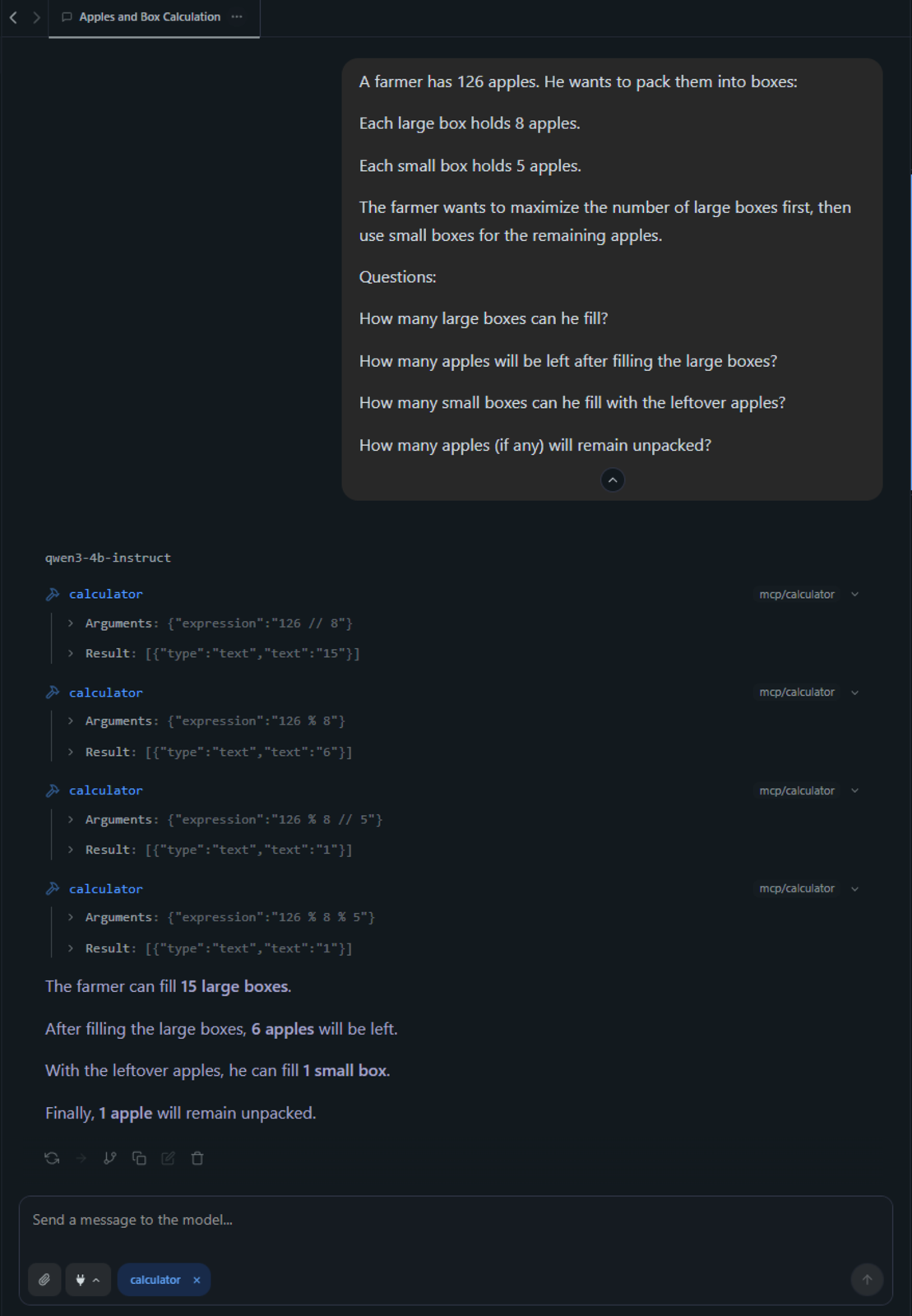
Today, I’m experimenting with MCP to give a language model some extra muscle in LM Studio. I chose the Qwen 3-4B non-reasoning model because it’s fast, lightweight, and ideal for tool integration. To overcome its weakness with math, I connected it to a simple calculator. The result? Quick, smooth text generation with precise results whenever numbers are involved.
Software Pre-requisites
- LM Studio (v0.3.17 or newer)
- LLM weights downloaded to your PC (I used Qwen3-4B-Instruct)
- Python (with the MCP package installed. I used v1.13.1)
Simple Calculator MCP Server
After a few rounds of iteration, ChatGPT successfully generated the code for the MCP server which the language model will call to perform the calculations. The process involved running the code generated and then feeding back any error messages to ChatGPT. Most of the initial issues came from code that wasn’t compatible with the latest version of the MCP library.
# D:/mcp_calc/main.py
from mcp.server.fastmcp import FastMCP
import math

# Initialize the MCP server
mcp = FastMCP("calculator-server")

# Define the calculator tool
@mcp.tool(description="Evaluate a math expression")
def calculator(expression: str) -> float:
    """Evaluate a math expression safely."""
    try:
        # Use eval with restricted built-ins for safety
        result = eval(expression, {"__builtins__": None}, vars(math))
        return result
    except Exception as e:
        return f"Error: {str(e)}"

# Run the MCP server
if __name__ == "__main__":
    mcp.run()
Configuring LM Studio to Use the Calculator Tool
In an LM Studio Chat, click on the Integrations button, then click Install and Edit mcp.json to tell LM studio to run the simple Calculator MCP Server that we created.
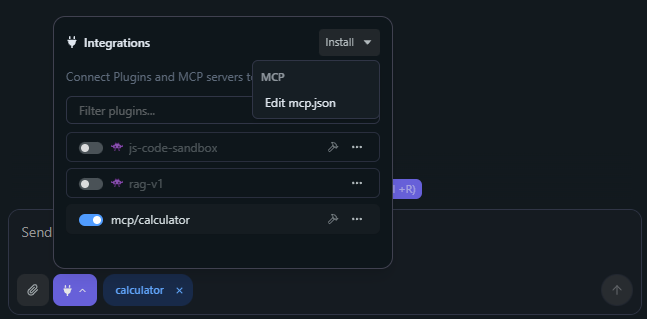
This was my mcp.json file. The .venv was my Python virtual environment which contained the MCP python package.
{
  "mcpServers": {
    "calculator": {
      "command": "D:/mcp_calc/.venv/Scripts/python.exe",
      "args": [
        "D:/mcp_calc/main.py"
      ]
    }
  }
}
Teaching the Language Model to Use the Tool
Finally, the Language Model needs to know when to use the Tool and how to use it. We do this by editing the System Prompt, which is the initial instruction given to the model that defines its role, behavior, or constraints for the session. You can access the Settings menu by clicking on the Spanner icon at the top right of the LM studio window and edit the System Prompt under the Context Tab. The JSON object format tells the model what information it needs to provide to the calculator tool and in what format is the tool expecting the message. The rules tell the model when and how should it use the tool.
You are a helpful assistant.
You have access to the following tool:

calculator: evaluates math expressions.
To use it, output a single JSON object per calculation in this exact format:

"tool": "calculator", "input": {"expression": "<math expression>"}

Rules:

1. Always use the calculator tool for every arithmetic operation.
2. Treat each arithmetic step (division, modulo, multiplication, subtraction, etc.) as a separate calculation.
3. Output one JSON object per arithmetic step, not one for the entire problem.
4. Do not perform any calculations yourself outside of the tool.
Conclusion
You can now chat with the model and let it handle the math for you using the calculator tool. Think of this project as the “Hello World” of MCP—simple, yet powerful. And this is just the beginning—there’s so much more potential to unlock and expand the capabilities of language models.